How to see Turnitin report on Canvas/Blackboard/Moodle
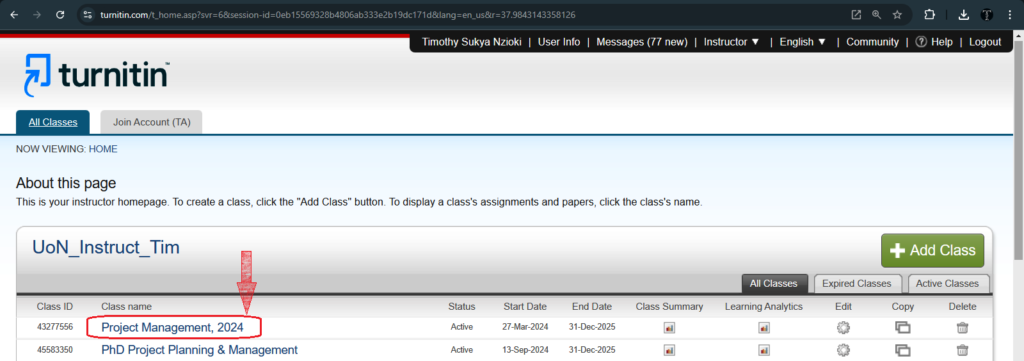
Learn how to view Turnitin similarity reports on Canvas, Blackboard, and Moodle. Step-by-step guides for students accessing originality scores through their LMS.
How to See Turnitin Report on Canvas/Blackboard/Moodle
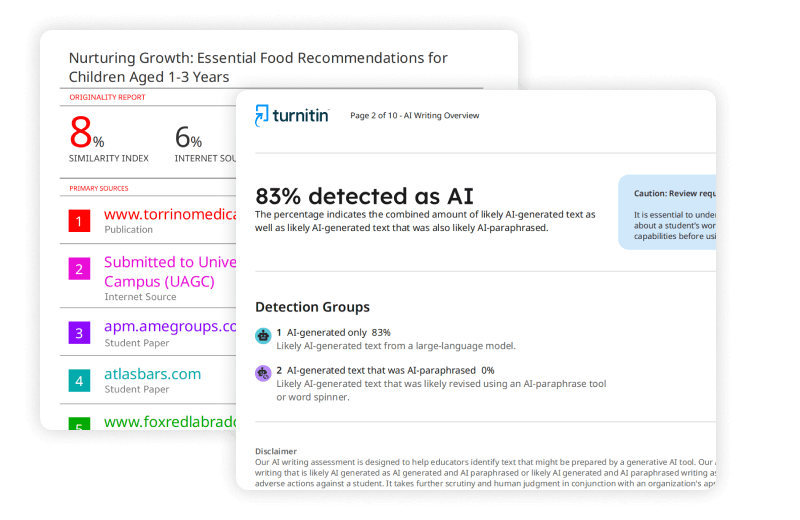
You have submitted your assignment. Now you wait. After a few minutes, or sometimes hours, you notice a percentage appears next to your submission. That number represents your similarity score. It shows how much of your text matches existing sources in Turnitin’s database. You need to see the full report to understand what matched and why. Most students access Turnitin through their university’s Learning Management System. Each platform handles the display slightly differently. This guide explains exactly how to see Turnitin report on Canvas/Blackboard/Moodle, along with what to do when your school uses a direct integration or when you need to access the Turnitin website independently.
How Turnitin Integrates with Your Learning Management System
Turnitin functions as a plagiarism detection layer within your existing student portal. Your university pays for institutional access. You do not buy your own subscription. Instead, you log into Canvas, Blackboard, or Moodle using your standard student credentials. When your instructor enables Turnitin for an assignment, the system checks your submission automatically. It compares your work against billions of web pages, academic papers, and previously submitted student essays.
The similarity report generates within minutes for most submissions. Sometimes it takes longer if the file is large or if many students submit at once. You cannot speed up this process. You can only wait for the icon to appear.
Understanding the Similarity Score Icons
Before accessing the full report, you see a colored indicator. These colors correspond to percentage ranges:
- Blue: Less than 20% matching text
- Green: 20% to 40% matching text
- Yellow: 40% to 60% matching text
- Orange: 60% to 80% matching text
- Red: 80% to 100% matching text
A high percentage does not automatically mean you plagiarized. It simply means Turnitin found matching text. You must open the actual report to see if you cited sources correctly or if you accidentally copied text without attribution.
Viewing Turnitin Reports in Canvas
Canvas uses the SpeedGrader interface for most Turnitin interactions. Your instructor decides when you see the report. They might allow immediate viewing, or they might block access until after the due date or grading.
Method 1: Through the Grades Section
This approach works best when you want a quick check across multiple assignments.
- Log into your Canvas course using your standard institutional credentials.
- Click “Grades” in the left navigation menu.
- Locate the assignment name in the gradebook list.
- Look for a colored flag icon or percentage number in the row corresponding to that assignment.
- Click the flag or percentage. The Turnitin report opens in a new tab.
- Review the highlighted text and source matches on the right panel.
If you see a gray icon instead of a color, the report is still processing. Check back in ten to fifteen minutes.
Method 2: Through the Assignment Page
Sometimes you want to see the submission details directly.
- Navigate to the specific assignment within your Canvas course.
- Click “Submission Details” beneath the assignment header.
- Find your uploaded file or text entry.
- Click the colored similarity icon next to your submission.
- The Turnitin Feedback Studio loads, showing your similarity report layered over your document.
Method 3: Using the Canvas Student App
Mobile access varies by institution. If your school enabled mobile Turnitin viewing:
- Open the Canvas Student app on your phone.
- Navigate to your course and tap “Grades.”
- Tap the assignment row.
- Tap the similarity percentage if it appears as a clickable link.
- The app redirects you to a browser view of the report.
Some institutions disable mobile viewing for security reasons. If you do not see a clickable link, use a desktop browser instead.
Accessing Turnitin Reports in Blackboard
Blackboard offers two different Turnitin integration methods. Your school either uses the newer LTI 1.3 integration (common in Blackboard Ultra) or the older building block method. The steps differ slightly depending on which version your institution installed.
Blackboard Ultra (Newer Integration)
- Log into Blackboard using your student username and password.
- Enter your course and find the assignment link.
- Submit your document if you have not already done so.
- Return to the assignment link after submission.
- Locate your submission preview tile.
- Look at the top right corner for a colored pill or percentage indicator.
- Click the percentage to open the full Turnitin similarity report in a new window.
The report shows your overall percentage at the top. Below, you see categories like “Not Cited or Quoted,” “Missing Quotations,” and “Missing Citation.” Click each category to filter the highlights in your document.
Original Blackboard (Legacy Integration)
- Access your course through the standard Blackboard login portal.
- Find the content area containing your assignment.
- Click the assignment title to open the Turnitin assignment inbox.
- You see a list of submitted files with similarity percentages in the right column.
- Click the percentage number to launch the Turnitin Feedback Studio.
- Review the document overlay showing highlighted matches.
If your instructor allows multiple submissions, each attempt appears as a separate row. Click the specific attempt you want to review. Resubmitted papers sometimes take twenty-four hours to generate a new report to prevent self-matching against your previous draft.
Downloading Your Report in Blackboard
Blackboard Ultra integration allows you to save a PDF copy:
- Open your similarity report using the steps above.
- Look for a download arrow in the top right corner of the Turnitin viewer.
- Select “Current View” to save the PDF with your current filter settings, or “Standard PDF” for the original report.
- The file downloads to your device for offline review.
Finding Turnitin Reports in Moodle
Moodle integrates Turnitin through a plugin. Your administrator or instructor configures the settings when they create the assignment. You access the report through Moodle’s standard assignment interface.
Standard Moodle Assignment Access
- Log into Moodle with your institutional credentials.
- Navigate to your course and locate the relevant assignment activity.
- Click the assignment name to open it.
- You see your submission status table.
- Look for the “File Submissions” column showing your uploaded document.
- Find the percentage displayed next to or below your filename.
- Click the percentage to open the Turnitin similarity report in a new browser tab.
Through the Grades Page
Some Moodle configurations show similarity scores in the gradebook:
- Click “Grades” in your course navigation.
- Find the assignment in the grade items list.
- Look for a Turnitin icon or percentage in the feedback column.
- Click the icon to view the detailed report.
Understanding Moodle-Specific Delays
Moodle offers instructors three settings for report generation speed. Depending on which setting your instructor chose, you might see different behaviors:
- Immediate: You see the percentage within minutes of submission.
- Immediate with due date reprocessing: You see an initial score immediately, but the percentage might change after the due date passes when Turnitin re-checks against your classmates’ submissions.
- Due date only: You see no percentage until the assignment deadline passes.
You cannot change these settings. Only your instructor can adjust them through the Turnitin plugin settings in Moodle.
When You Need Direct Turnitin Access
Most students never need to visit the Turnitin website directly. Your LMS handles everything. However, certain situations require a direct login. Perhaps your instructor provided a Class ID instead of an LMS assignment. Maybe you attend an institution that uses ManageBac, which requires a separate Turnitin bac login flow. Or you might need to reset your password for a standalone account.
Creating a Direct Student Account
If your instructor gives you a Class ID and enrollment key, you must create your own profile on the Turnitin website.
- Visit turnitin.com and find the “Log In” button at the top right.
- Click “New User?” or “Create Account.”
- Select “Student” as your account type.
- Enter the Class ID provided by your instructor (usually a five to eight digit number).
- Enter the enrollment key (case-sensitive).
- Fill in your email address and create a password. Turnitin requires at least twelve characters with uppercase letters, lowercase letters, numbers, and special symbols.
- Choose a secret question and answer for account recovery.
- Accept the user agreement and click “Create Profile.”
After creation, you can perform a standard Turnitin user log in by entering your email and password at the Turnitin website homepage.
Managing ManageBac and BAC Logins
Some international schools and IB programs use ManageBac for curriculum management. This platform integrates with Turnitin for originality checking. If your school uses this configuration, you might search for “Turnitin login student bac” or “Turnitin bac login” when troubleshooting access.
ManageBac handles authentication through its own portal. You do not create a separate Turnitin account manually. Instead:
- Log into ManageBac using your school-provided credentials.
- Navigate to the specific task or deadline.
- Submit your file through the ManageBac dropbox.
- Click “Feedback Studio” or the similarity percentage that appears after processing.
- The system passes you through to Turnitin automatically without requiring a separate turnitin.com login.
If you encounter errors, verify with your instructor that the ManageBac integration is active and that your class has not expired. Turnitin classes linked to ManageBac expire after one year by default, requiring your administrator to reactivate them.
Resetting Your Password
Students sometimes forget passwords for direct Turnitin accounts:
- Go to the Turnitin website login page.
- Click “Forgot your password?”
- Enter the email address associated with your account.
- Check your inbox for a reset link (check spam folders too).
- The link expires in twenty-four hours, so act quickly.
- Create a new password meeting the complexity requirements.
If you originally accessed Turnitin through an LMS but now need a standalone account, your email might already exist in the system. Do not create a duplicate account. Use the password reset feature instead to regain access.
Interpreting Your Similarity Report Content
Opening the report is only the first step. Understanding what you see determines whether you actually improve your writing.
The Match Overview Panel
This sidebar shows every source that matches text in your paper. Each source displays a percentage representing how much of your document matches that specific webpage, journal article, or student paper. Sources are ranked by percentage, highest to lowest.
Highlighting Colors in Your Document
Different colors indicate different issues:
- Red text usually matches internet sources or published papers.
- Blue text often matches other student papers from the repository.
- Yellow or green might indicate quotations or references depending on your instructor’s exclusion settings.
Click any highlighted section. The source panel shows exactly where the text originated. You can exclude sources if you determine they are false positives, such as your own previous draft submitted to a different class.
Excluding Bibliographies and Quotes
Instructors can set automatic exclusions, or you might see options to toggle these filters yourself:
- Exclude Bibliography: Removes matches from your reference list.
- Exclude Quotes: Removes text inside quotation marks from the similarity calculation.
- Exclude Small Matches: Hides sources matching fewer than a specified number of words (often eight words by default).
These exclusions help you focus on actual potential plagiarism rather than properly cited material.
Common Access Problems and Solutions
Students encounter specific technical barriers when trying to view reports. Here is how to resolve them.
Pop-up Blockers Prevent Report Loading
Turnitin opens reports in new browser tabs or windows. If you click the similarity percentage and nothing happens, your browser blocked the pop-up.
Fix: Look for a blocked pop-up icon in your browser’s address bar. Click it and allow pop-ups from turnitin.com. Alternatively, hold the Control key (Windows) or Command key (Mac) while clicking the similarity icon to force a new tab.
“Report Not Available” Messages
You might see text stating reports are available only after the due date, or that your instructor disabled student viewing.
Fix: Contact your instructor directly. They control these visibility settings. You cannot override them.
Processing Delays
Submissions sometimes show “Processing” for hours. This happens during high-volume periods like end-of-semester deadlines.
Fix: Wait. Reports typically generate within twenty-four hours. If it exceeds this timeframe, email your instructor with a screenshot showing the processing status.
Account Conflicts
If you attempt a Turnitin sign up student process using an email already in the system, you receive an error stating the account exists.
Fix: Do not create a new account. Use the “Forgot Password” link to recover access to your existing profile. Creating multiple accounts fragments your submission history and causes confusion with instructors.
Best Practices for Before and After Submission
Accessing the report matters most when you use it to improve your work. Follow these habits to make the most of the system.
Submit Drafts Early
If your instructor allows multiple submissions, treat the first submission as a test run. Submit your draft three days before the deadline. Check the similarity report. Revise any sections with high matching percentages. Resubmit your improved version. This process helps you learn proper paraphrasing techniques while avoiding last-minute panic.
Check File Formats
Turnitin accepts Microsoft Word, PDF, plain text, HTML, and several other formats. However, some PDF generators create images rather than selectable text. If you submit an image-based PDF, Turnitin returns a 0% match because it cannot read the content. You waste your submission attempt.
Check: Open your PDF and try to select text with your cursor. If you cannot highlight the words, resave the document using a different method or submit the original Word file instead.
Keep Your Submission Receipt
After submitting through any LMS or the Turnitin website directly, the system generates a digital receipt. Save this receipt. It contains your submission ID and timestamp. If technical issues arise later, this receipt proves you submitted on time.
Summary of Access Methods
| Platform | Primary Access Point | Secondary Access Point |
|---|---|---|
| Canvas | Grades page (click colored flag) | Assignment submission details |
| Blackboard | Assignment link (click percentage pill) | Ultra: Course content area / Original: Assignment inbox |
| Moodle | Assignment activity (click percentage) | Grades page (if enabled) |
| ManageBac | Task dropbox via Feedback Studio | Direct integration (no separate login needed) |
| Standalone | turnitin.com login with email/password | Class ID enrollment page |
Final Thoughts
You now understand how to see Turnitin report on Canvas/Blackboard/Moodle through multiple pathways. You know how to perform a Turnitin sign up student account creation when your instructor provides a Class ID, how to execute a Turnitin login student bac process through ManageBac integration, and how to handle a standard turnitin.com login for direct institutional accounts.
Remember that the similarity percentage is merely a tool. It alerts you to potential issues. Your critical thinking determines whether those issues constitute plagiarism or proper citation. Check your reports early, revise accordingly, and submit your final work with confidence that you have maintained academic integrity.
LET US HUMANIZE YOUR PAPERS – No Plagiarism Guarantee!
Need assistance with your writing? Look no further! Our team of skilled writers is prepared to provide you with prompt writing help. Rest assured, your work will be entirely original and free from any plagiarism, as we offer a guarantee against it. Experience swift and dependable writing assistance by reaching out to us today!
Top-Rated AI Text Humanizer | GET Flawless content for All Your PROJECTS!